View the progress of digital marketing projects on Itroz
Learning to view the progress of digital marketing projects in itroz will examine the process from order to completion.
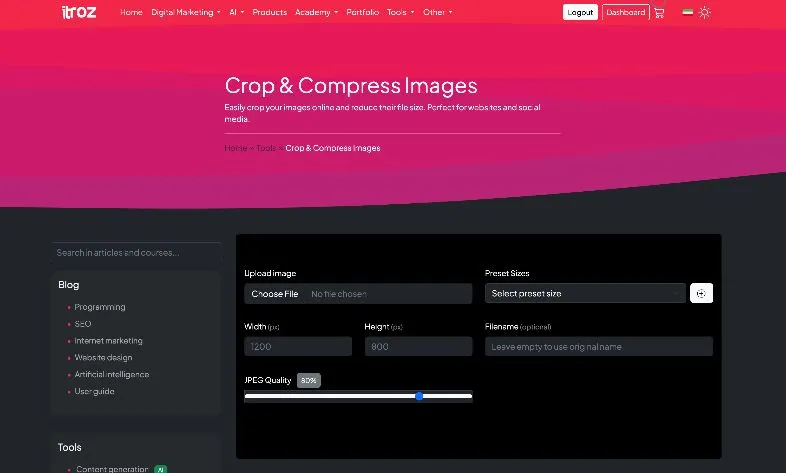
Do you want to crop or cut the desired image?
Do you want to resize the image and adjust it to your desired dimensions?
Through the Itroz tool, you can not only perform the above tasks, but you can also reduce the size of the desired image file.
Reducing file size is very useful for producing images to be used on websites and social networks.
Finally, through this tool, you can also choose the file name.
First, we want to teach the method of resizing or cropping images.
To do this, enter the Crop and Image Size Reduction tool.
In this section, you first need to upload your desired image.
After uploading the desired image, to resize it, enter your width and height dimensions in the size section.
The entered width and height are the dimensions to which you want the desired image to be changed.
After selecting the dimensions, click on the create crop area button so that the selected width and height area is displayed.
After that, you can adjust the position of the photo within the desired dimensions.
Finally, click on the download button so that you can download the created image with the new dimensions.
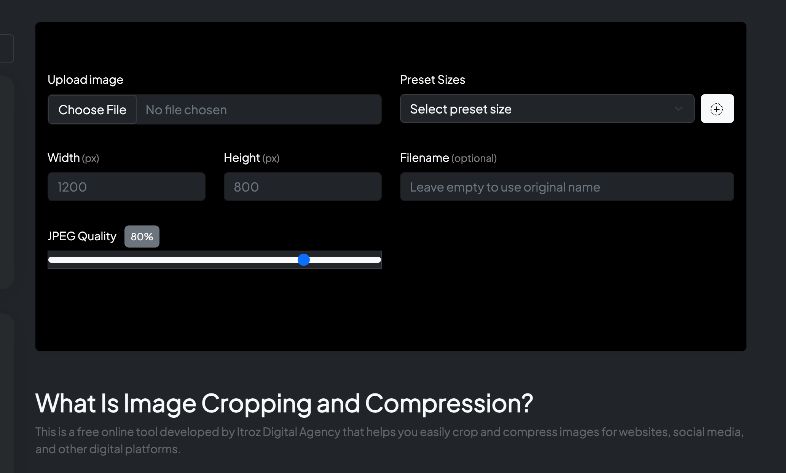
To reduce image size, after uploading the desired image, simply scroll the desired quality level from the image quality section.
By default, images are saved with 80 percent quality.
If you do not want your image to lose size and quality, set this option to 100.
Otherwise, depending on your needs, you can choose your desired image quality.
Keep in mind that reducing image quality reduces file size and is very effective for web usage.
If you want to use the desired image on your website or online store, 80 percent quality is a good level.
After clicking the download button, the information of the original image as well as the modified image, including its size, will be displayed for you.
And you can easily see the difference between the two images.
The preset dimensions section is very effective for use on social networks.
Through this section, you can adjust the desired image for social networks.
For example, if you want your desired image to be cropped based on YouTube cover dimensions, you can select the desired option from the preset dimensions section.
After selecting the preset dimensions, according to the above instructions, you can create the crop area and complete the remaining steps.
There is a very practical feature in this section.
You can click on the plus option to add your custom dimensions to the preset dimensions section.
To do this, simply click on the plus button in the preset dimensions section.
The first option is your label name.
Choose a name for your dimensions.
For example, we select Itroz Blog as the label.
Now you must enter the width and height of your custom image that you want the uploaded images to be cropped or resized based on.
For example, we want the Itroz blog featured images to be cropped to 600 by 300 pixels.
Therefore, we enter these dimensions for width and height.
By doing this, that label will be added to your preset dimensions section.
The created label is only visible and usable on your own system.
Each person can define and add their own custom dimensions in this tool on their own system.
So keep in mind that these preset dimensions are only visible on the system where you enter them.
To change the image file name in the continuation of the free online photo cropping and image size reduction tutorial, simply enter the desired name in the file name section.
If you do not enter a file name, by default the tool will create the new file using the uploaded file name.
This tool is useful for anyone who wants to resize or crop their images or photos online.
This tool performs this task quickly and easily for you.
In addition to this, you can also change the image file size.
You can also rename it as you wish.
The free online photo cropping and image size reduction tool is useful for people who want to produce content on the internet such as webmasters, website and online store administrators, as well as social media admins.
However, its main application is for producing website content, including blog sections and products.
And it makes the person independent of using any additional tools.
Source » Itroz Academy

Learning to view the progress of digital marketing projects in itroz will examine the process from order to completion.

Site optimization review using a free online SEO site analysis tool. Complete website or online store analysis at the itroz Digital Agency.

By learning the online SEO keyword research tool on itroz, you can analyze your desired keywords along with prices and complete analysis.
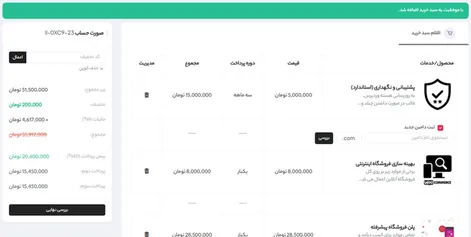
Training on the smart installment payment system when placing an order for a store website design at the Itroz Digital Agency.


Follow the guide to set up your domain email on any device or OS, including both smartphones and computers, quickly and easily.

This guide is useful for automatically forwarding your website emails set up on your domain to other email accounts, such as Gmail and others.

Step-by-step guide to install Thunderbird on macOS; download, setup, and manage multiple email accounts easily and efficiently.

Comments (0)